
Most Shopify stores don’t struggle with email because they picked the wrong tool. They struggle because they skipped the setup. The consent checkbox stays on its default, emails go out from a free Gmail address, and five automations get switched on in one afternoon with nobody checking them.
This Shopify email marketing guide covers everything directly from inside your admin. You will see what Shopify gives you for free, the six settings to fix before your first send, and a week-by-week plan for your first 30 days.
Quick answer: Shopify has free built-in email marketing called Shopify Messaging. Set it up in this order: turn on checkout consent, authenticate your domain, and add a signup form. Then launch your abandoned checkout and welcome flows first.
Does Shopify Have Email Marketing? What Shopify Messaging Covers
Yes. Shopify’s built-in tool is called Shopify Messaging. It used to be called Shopify Email, so older guides and app listings may still use that name. You can send email, SMS, and WhatsApp campaigns from your Shopify admin, and build email and SMS automations there too.
Here is what you get without installing anything else:
- Campaigns: a visual email builder with store templates, where your logo, products, and prices pull in from Shopify.
- Automations: ready-made templates for welcome emails, abandoned checkout, first-purchase follow-ups, and customer win-back.
- Segments: customer groups built in Customers > Segments, based on data like order count or subscription status.
- Plan access: it works on the Basic, Grow, Advanced, and Plus plans.
So when someone asks “does Shopify have email marketing,” the honest answer is yes, and it is a good place to start. Its limits are depth, not basics. It is built to be simple, so you get fewer options for branching logic, detailed segments, and revenue reports for each flow than dedicated email apps offer. We cover when those limits start to matter later in this guide.
If you already know you will want more room to grow, you can start with a dedicated app from day one. Adflipr installs from the Shopify App Store, syncs your customers, orders, and products automatically, and most stores send their first automated email within 5 to 10 minutes of connecting.
What Shopify Email Marketing Costs
Shopify Messaging gives every store on an eligible plan 10,000 free emails at the start of each month. After that, you pay $1 for every 1,000 extra emails, up to 300,000. The rate then drops to $0.65 per 1,000, and to $0.55 per 1,000 after 750,000 (Shopify pricing details).
Three billing rules catch people out:
- Emails are counted per recipient. One campaign sent to 800 subscribers counts as 800 emails, not one.
- Automations count too, with one exception: abandoned checkout emails are always free and never touch your monthly limit.
- Unused emails don’t roll over. If you send 6,000 in March, you don’t start April with 14,000.
| Emails sent in a month | Cost with Shopify Messaging |
|---|---|
| 10,000 | $0 |
| 20,000 | $10 |
| 50,000 | $40 |
| 100,000 | $90 |
For example, a store with 3,000 subscribers that sends two campaigns a week sends roughly 24,000 campaign emails a month, which costs about $14 before automations. SMS is billed separately.
When you compare this with a dedicated app, compare the total monthly cost at your real list size and sending volume, not the starting price on the pricing page. A tool that looks cheap at 500 contacts can cost far more at 15,000.
Adflipr also has a free plan with no credit card needed, so you can run it next to Shopify Messaging and compare real results before you pay for anything.
How to Set Up Email Marketing on Shopify: 6 Steps Before Your First Send
As you follow this Shopify email marketing guide, make sure you complete these six essential setup steps before launching your first campaign Each takes minutes, and skipping them causes most of the problems stores notice months later.
1. Turn on email consent at checkout
Go to Settings > Checkout, find Marketing opt-in, and check Email. You can show the checkbox at checkout, at customer sign-in, or both. Shopify also lets you preselect the box by region, either using “Regions recommended by Shopify” or regions you pick yourself (Shopify’s consent settings). Shopify says its recommendations are not legal advice, so check the consent rules where your customers live. Also rewrite the checkbox label so shoppers know what they will get, for example “Send me new arrivals and early sale access.”
2. Send from your own domain and authenticate it
Use an address like [email protected], not a free Gmail or Yahoo address. Then complete domain authentication so inbox providers can confirm the email really came from you. Gmail and Yahoo now expect bulk senders to authenticate and offer easy unsubscribes. Our email authentication guide and Gmail sender guidelines explain SPF, DKIM, and DMARC in plain steps. If you use Adflipr, it gives you the DNS records to add and verifies your domain automatically once they are in place.
3. Import only people who agreed to hear from you
If you are moving from another tool, import contacts with their subscription status, and never add a bought list. In Shopify, anyone who opted in appears in the Email subscribers segment on your Customers page. That segment is your real marketing list.
4. Add one signup form with one clear offer
Start with a single popup that appears after 10 to 20 seconds, asks only for an email address, and offers one reason to join. You can add quizzes, footer forms, and giveaways later. Our guide on how to build an email list covers those tactics in detail. With Adflipr’s popup and signup forms, new subscribers flow straight into your contact list and welcome series without any manual export.
5. Set your brand basics once
Save your logo, brand colors, fonts, and a footer with your business address and unsubscribe link. Every future email then starts from the same base. Anti-spam laws such as CAN-SPAM in the US require a physical address and a working unsubscribe link in marketing emails.
6. Create three starter segments
Build three groups: subscribers who have never bought, one-time buyers, and repeat buyers with two or more orders. These three cover most of what a new store needs. Leave advanced segments until you have more data, and use our email marketing segmentation guide when you are ready.
These steps matter because they are hard to fix later. A list built without clear consent, or a domain that is not authenticated, can quietly push your emails toward spam no matter how good the content is.
Your First 30 Days of Shopify Email Marketing, Week by Week
Launch one flow per week, not five in one afternoon. When each flow gets its own week, you can place a test order, check every link, and see what that flow actually earns before adding the next one.
Week 1: Abandoned checkout
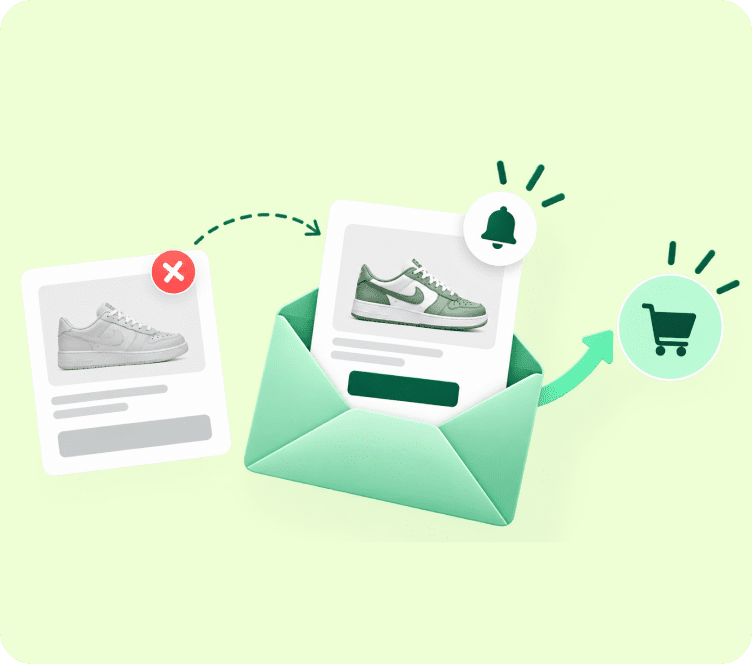
Start here because these shoppers already picked products and entered their email. Send three emails: a simple reminder after 1 hour, a second email after 24 hours with reviews or answers to common questions, and a final email 48 to 72 hours later. Save any discount for that last email, so you don’t train buyers to abandon carts on purpose. In Shopify Messaging, these emails don’t count toward your 10,000 monthly limit. Adflipr’s abandoned cart recovery runs this sequence for you, shows the exact items each shopper left behind, and reports the revenue each email recovers. For copy ideas, see these abandoned cart email examples.
Week 2: Welcome series
Send the first email the moment someone subscribes, with the offer you promised in your signup form. Send a second email a day later with your story and best sellers, and a third three days after signup with reviews and a reminder that the offer ends soon. Our welcome email subject lines post has 64 examples you can adapt.
Week 3: Post-purchase
Thank the customer when the order ships, then send tips on using the product once it arrives. Ask for a review 7 to 14 days after delivery, so they have had time to use it. A shorter gap works for simple items, a longer one for products like skincare. Our post-purchase email guide goes deeper.
Week 4: Win-back and your first regular campaign
Set a win-back email for customers who haven’t ordered in 60 to 90 days, and pick the window that matches how often your product is bought. In the same week, start one campaign a week, such as new arrivals or a buying tip. That is enough for your first month.
After day 30, you can add browse abandonment, back in stock alerts, and replenishment reminders. Our guide to marketing automation workflows has full blueprints for each one.
Use Shopify Store Data to Trigger Better Emails
Shopify already records what each customer does. The difference between a generic email program and a sharp one is choosing the right store event as the trigger.
- Trigger care emails on delivery, not on order. An order-placed trigger fires before the product arrives. When tracking data is available, time how-to and care emails to delivery, so the advice lands while the customer is holding the product.
- Keep order notifications separate from marketing. Order confirmations and shipping updates are set in Settings > Notifications and go to every buyer, subscribed or not. Brand them and keep them useful, but don’t turn them into sales emails.
- Tag customers so emails can react. Tags like “wholesale,” “gift buyer,” or the product type someone bought let you build segments without guessing. Shopify Flow, Shopify’s own automation app, can add tags automatically, such as tagging a customer after their third order.
- Put an end date on every email discount. Set an expiry on the discount in Shopify so a win-back code can’t circulate forever on coupon sites.
Adflipr’s marketing automation can start a flow from any of these store events: an order placed, a product viewed, a cart abandoned, or a customer tagged. Its email builder also has a Coupon Block that adds discount codes with a built-in expiry, so the last tip takes care of itself.
This matters because store data is where email marketing for Shopify stores beats a general newsletter tool. A reminder that shows the exact product someone left behind, sent at the right moment, will always beat a generic “come back and shop” email.
When to Move From Shopify Messaging to a Dedicated App
Many stores never need to leave Shopify Messaging, and that is fine. Look at a dedicated app built for email marketing for Shopify when you notice one or more of these signs:
- Your flows need to branch. For example, you want first-time and repeat buyers to get different follow-ups, or a flow to change based on whether someone clicked the last email.
- Your segments need more conditions. You want groups that mix order data with browsing behavior or email engagement, such as “viewed this category twice but never bought.”
- You need revenue by flow and by email. Campaign totals are not enough once automations drive a large share of your sales.
- Your overage bill keeps growing. Once your monthly Shopify Messaging cost gets close to a dedicated app’s plan price, compare features at your real sending volume.
Here is a fair side-by-side view of the two options most Shopify stores weigh first:
| Feature | Shopify Messaging | Adflipr |
|---|---|---|
| Where it runs | Inside your Shopify admin | Shopify app that syncs customers, orders, and products |
| Cost to start | 10,000 free emails a month, then $1 per 1,000 | Free plan, no credit card needed |
| Flow triggers | Ready-made templates for welcome, checkout, first purchase, win-back | Order placed, product viewed, cart abandoned, customer tagged |
| Segments | Customers > Segments in Shopify | Order value, purchase frequency, product category, custom tags |
| Reporting | Campaign and automation results in Shopify | Revenue for each campaign and each automation |
| Also works with | Shopify only | Shopify and WooCommerce |
| Best fit | New stores with simple needs | Growing stores that want store-event automation and revenue reporting |
If you do switch, export subscribers with their consent status first. Then rebuild flows in the same order you launched them. Turn off each old flow before its replacement goes live, so nobody gets two copies of the same email. If you are comparing options, our roundup of Klaviyo alternatives for Shopify stores lays out the main choices side by side.
The Three Numbers to Check Every Month
You don’t need a dashboard of twenty metrics in your first year. Check these three once a month, and compare each one with your own last three months, not someone else’s average.
- Revenue per recipient, split into flows and campaigns. Divide the revenue an email earned by the number of people who received it. Looking at flows and campaigns separately shows which one is really carrying your sales.
- Abandoned checkout recovery rate. This is the share of abandoned checkouts your emails win back. A well-built sequence often recovers around 10% to 15%, but your own trend matters more than any benchmark.
- Unsubscribe and spam complaint rates. A sudden rise usually means you are sending too often or sending the wrong thing to the wrong group. Gmail asks bulk senders to keep spam complaints low, so treat any jump as a warning.
Notice what is missing: open rate. Apple Mail Privacy Protection can mark emails as opened even when nobody read them, so opens alone can make weak emails look healthy. For full definitions and industry comparisons, see our email marketing metrics and benchmarks guide. In Adflipr, analytics and reporting shows the revenue from every campaign and automation on one screen, so the first number takes seconds to check.
Key Takeaways
- Shopify Messaging, formerly Shopify Email, handles campaigns, basic automations, and segments right inside your admin.
- Your first 10,000 emails each month are free, and abandoned checkout emails never count toward that limit.
- Fix consent, domain authentication, imports, signup form, branding, and starter segments before your first send.
- Launch one flow per week in this order: abandoned checkout, welcome, post-purchase, then win-back.
- Trigger emails from real store events, like delivery or a third order, instead of generic dates.
- Move to a dedicated app like Adflipr when you need store-event triggers, richer segments, or revenue by flow.
- Each month, check revenue per recipient, checkout recovery rate, and unsubscribe and spam complaint rates.
Final Thoughts
Good Shopify email marketing is less about the tool and more about the order you do things in: clean setup first, one flow at a time, and a monthly check of three numbers. Shopify Messaging is a fine place to begin. When you want flows triggered by real store events and revenue reported for every email, install Adflipr from the Shopify App Store and start on the free plan, or first see how the Adflipr Shopify integration works. Selling on WooCommerce too? Our WooCommerce email marketing guide covers that platform.
Frequently Asked Questions (FAQs)
Yes. Shopify Messaging, formerly Shopify Email, lets you send email campaigns and automations from your Shopify admin, with 10,000 free emails each month.
The first 10,000 emails each month are free. After that, Shopify charges $1 per 1,000 emails, and abandoned checkout emails never count toward the limit.
Turn on email consent at checkout, authenticate your sending domain, import only subscribed contacts, add one signup form, then launch your abandoned checkout flow first.
Abandoned checkout. It reaches shoppers who already chose products, and in Shopify Messaging those emails don’t count toward your monthly email limit.
Start with one campaign a week alongside your automated flows. Add more only while unsubscribes and spam complaints stay low.
It depends on where your customers live. Shopify lets you preselect it by region, but its recommendations aren’t legal advice, so check local consent rules.
Switch when you need branching flows, detailed segments, or revenue reports for each flow, or when your overage costs approach a dedicated app’s price.
Yes. Shopify email marketing through Shopify Messaging works on Plus, and Adflipr’s native app also connects to Shopify Plus stores.